Loading...
Blur parts of any photo or apply blur effects to the whole image for free. No signup required, works in your browser on Mac, Windows, iPhone and Android.
Choose from seven blur methods: Stack Blur, Gaussian, Box Blur, Motion Blur, Radial Blur, Heavy Radial and Soften. Paint selectively over the areas you want to blur, or apply the effect to the entire image in one click. Adjust intensity and brush size for full control.
Protect privacy by blurring faces, license plates, addresses, phone numbers and other sensitive information before sharing photos online. Works with JPG, PNG, WebP and HEIC files.
Selectively blur any area or apply effects to entire photos. Perfect for privacy protection and creative focus effects, for free.
Three steps. No signup, nothing to install.
Drop a JPG, PNG, WebP, HEIC or HEIF photo onto the page, up to 15 MB in size. The image loads with no signup and nothing to install.
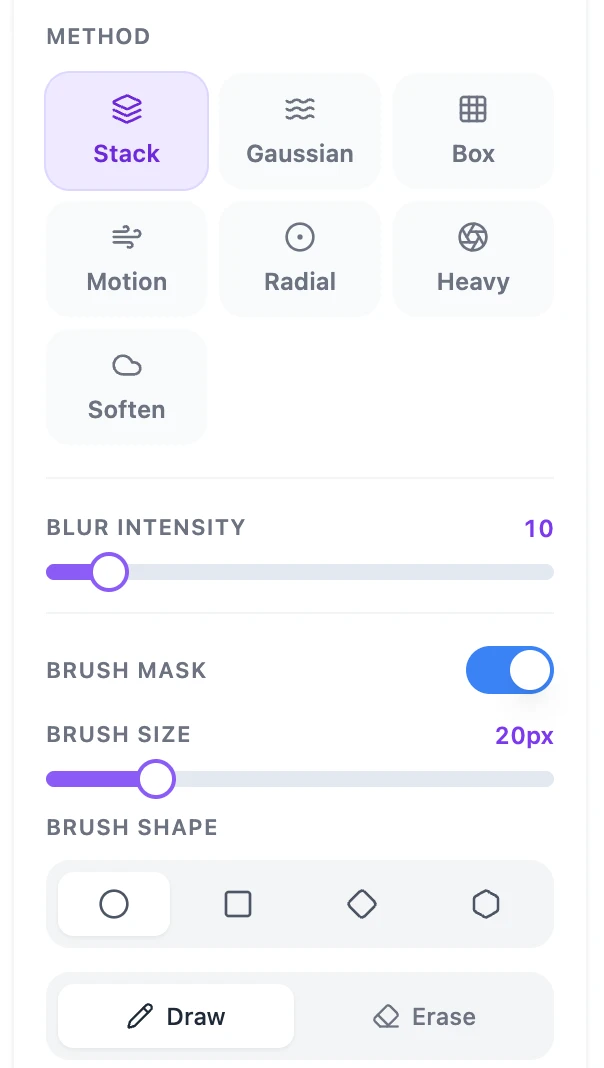
Choose a blur method like Gaussian, Box, Motion or Radial, then drag the intensity slider to fine tune the exact softness or speed effect you want.
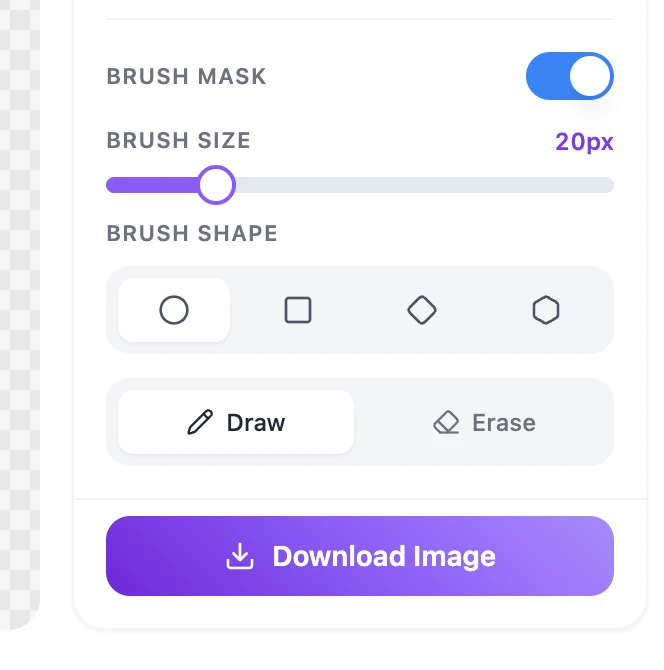
Turn on Brush Mask to blur only the zones you paint, or leave it off to blur the whole photo. Download the finished image as a PNG with no watermark.
From hiding private info to creative motion effects
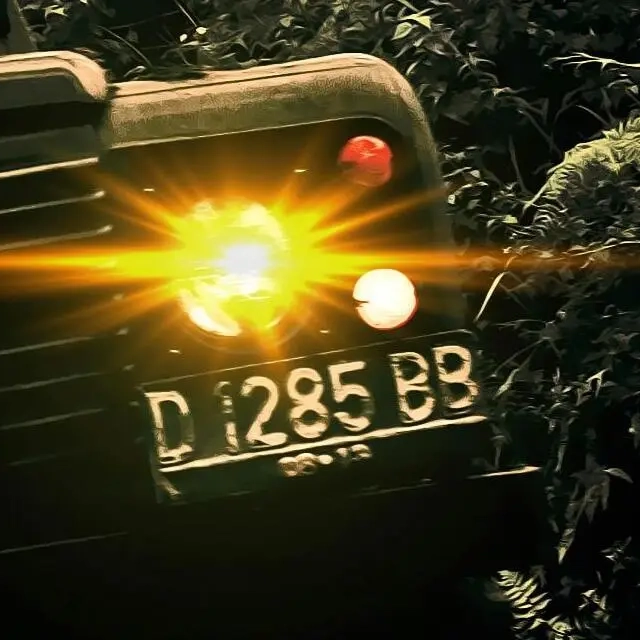 Before
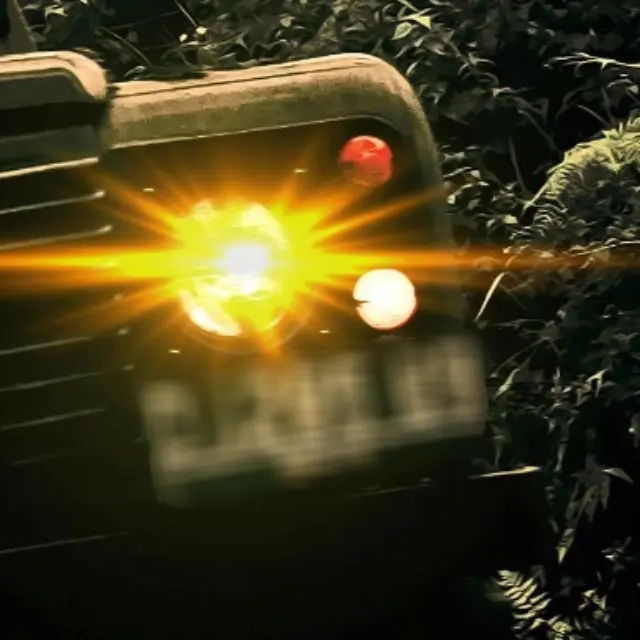 After
AfterBrush over a license plate, an address label or any sensitive area you want to hide. Push the intensity high and the region becomes unreadable while the rest of the photo stays sharp.
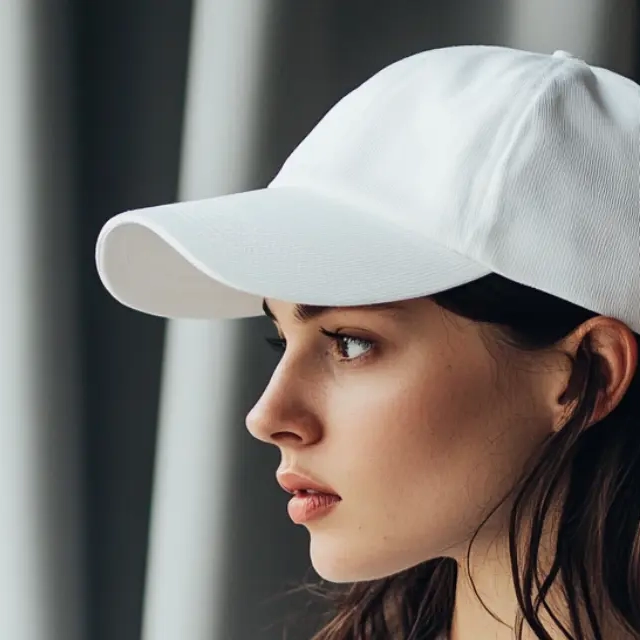 Before
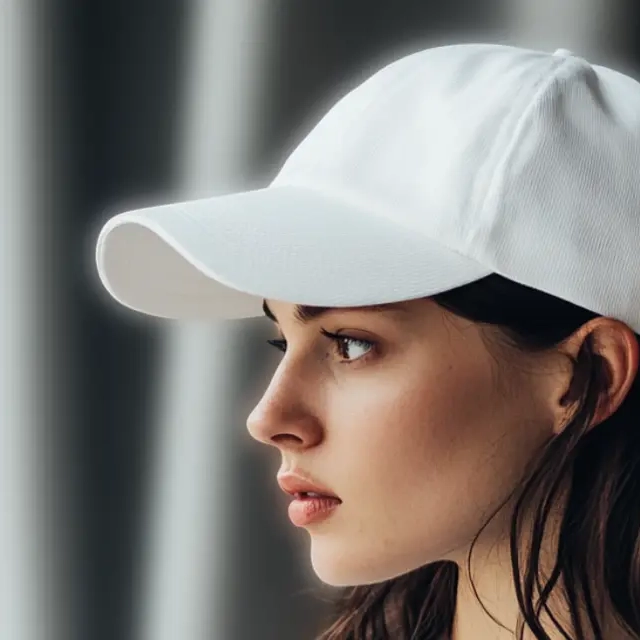 After
AfterBrush a tight zone around your subject then blur the area outside the mask. You get the soft creamy backdrop of a pro lens without spending anything on glass, perfect for portraits.
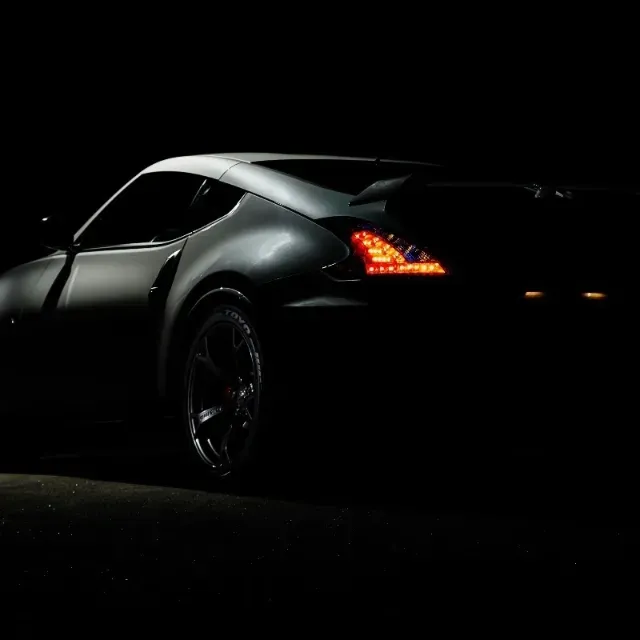 Before
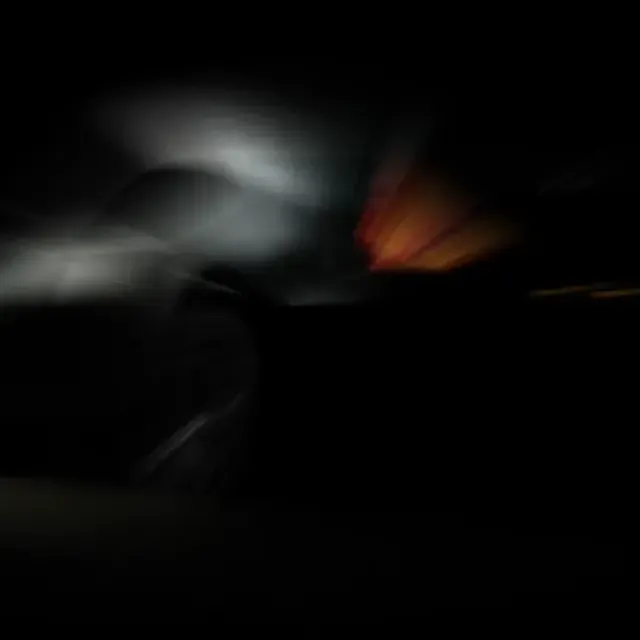 After
AfterSwitch to Motion or Radial blur and crank the intensity to turn a still shot into a dynamic moment. Great for cars, sports gear and any subject you want to feel alive on screen.
Blur is one of the most versatile effects in photo editing, from protecting privacy to creating professional visual focus.
Before sharing photos online, blur faces, license plates, home addresses, phone numbers, bank details and any other personal information. Essential for journalists, HR teams, content moderators and anyone who works with images that contain identifiable data before publication or distribution.
Simulate the bokeh effect of professional lenses by blurring the background while keeping the subject sharp. This technique draws the viewer's attention to the main subject and is widely used for portrait photography, product shots and food photography where a camera's depth of field wasn't enough.
Blur distracting elements in the background of photos before posting to Instagram, LinkedIn or YouTube thumbnails. Highlight the focal point of an image, hide irrelevant details in screenshots, or add a soft artistic blur to create a mood for story posts and banner graphics.
Free, no signup, and all editing happens in your browser.
Crop freehand or to a preset aspect ratio.
Grayscale, monochrome, sepia or a single custom tone.
Cut out the subject automatically and drop in a new background.
Shrink the file size, or hit an exact size in KB.
Quick answers about how this tool works and how to get the best results.
Both options are available. In selective mode, you paint over the areas you want to blur using a brush. This is useful for hiding faces, license plates, or any specific region. In full-image mode, the blur effect applies to the entire photo at once, which is faster when you want a uniform depth-of-field or dreamy background effect across the whole image.
The tool includes seven blur methods: Stack Blur (smooth, general-purpose), Gaussian (soft and natural-looking), Box Blur (fast, geometric softening), Motion Blur (simulates camera movement, with an angle control to set the direction), Radial Blur (spins outward from the center), Heavy Radial (a stronger version of radial for dramatic spin effects), and Soften (a light, subtle smoothing pass). Each can be combined with the intensity slider to control how strong the effect is.
Select the brush tool, set your brush size to cover the area you need, and paint over the face, license plate, address, or any other detail you want to hide. Adjust the blur intensity until the information is no longer readable. You can paint multiple separate areas in a single session, then download the result as a JPG or PNG.
You can upload JPG, PNG, WebP and HEIC files. The result exports as JPG or PNG. JPG is smaller and ideal for photos you plan to share online. PNG is lossless and better if you need the highest possible output quality or if the image has a transparent layer.