
Loading...
Click any color in your photo and replace it with a new color . No signup, no software, no watermarks. Works in your browser on Mac, Windows, iPhone and Android.
Use the sensitivity slider to control how broadly the tool matches the selected color, then pick your replacement color and apply. Change multiple colors in a single session without starting over. Perfect for creating product color variants, swapping background colors, and updating brand visuals.
Upload JPG, PNG, WebP or HEIC files. Download the result as JPG or PNG. Free with no usage limits.
Replace any color in your photos with precision and full control. Perfect for product variants, brand materials and creative designs.
Three steps. No signup, nothing to install.
Drop a JPG, PNG, WebP, HEIC or HEIF photo onto the page, up to 15 MB in size. The image loads with no signup and nothing to install.
Click a Source color, click a Target color, then drag the tolerance slider until every shade you want changed is included.
Turn on Brush Mask for surgical zone edits, or skip it for a global swap. Download the recolored photo as a PNG, free and no signup.
From surgical recolors to full scene grading
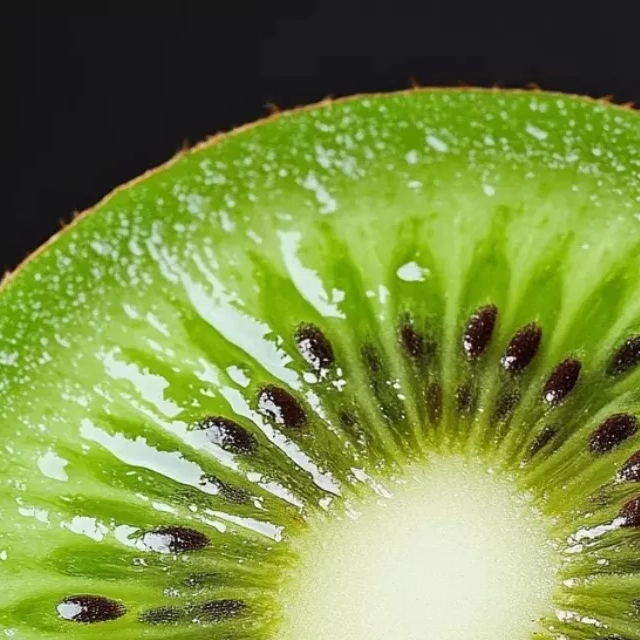 Before
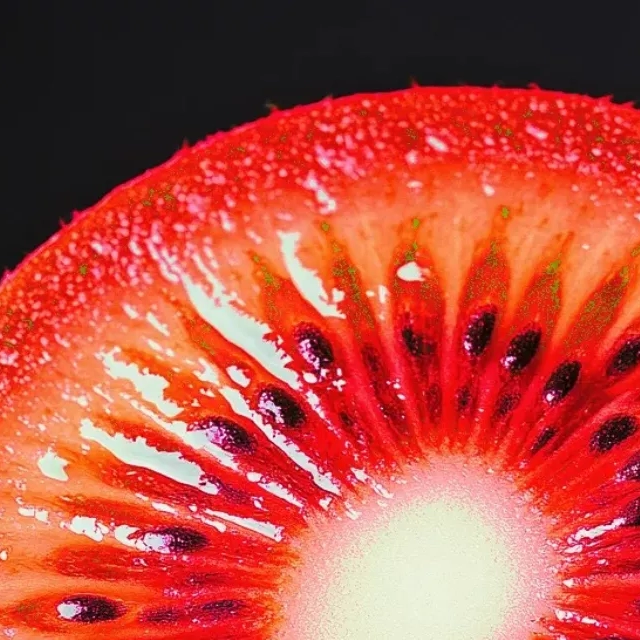 After
AfterPick a Source color, pick a Target color, push tolerance to catch every shade and download. A green kiwi turns red without touching the seeds or the background.
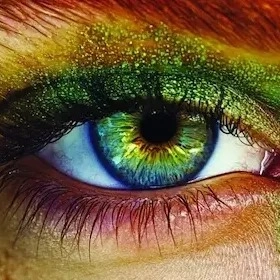 Before
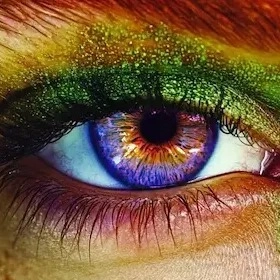 After
AfterPaint a tight zone with Brush Mask, then run Source to Target only inside it. Change someone iris color or a small product detail without disturbing the rest.
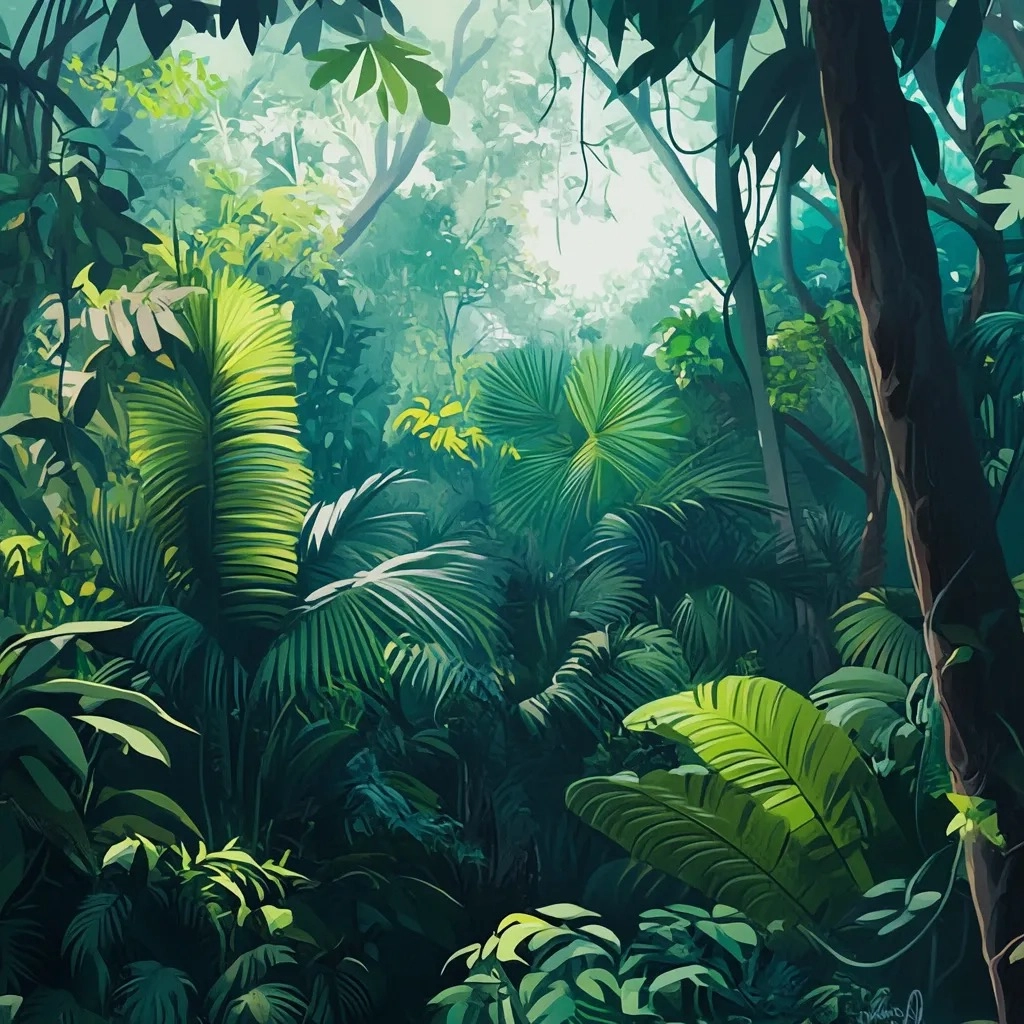 Before
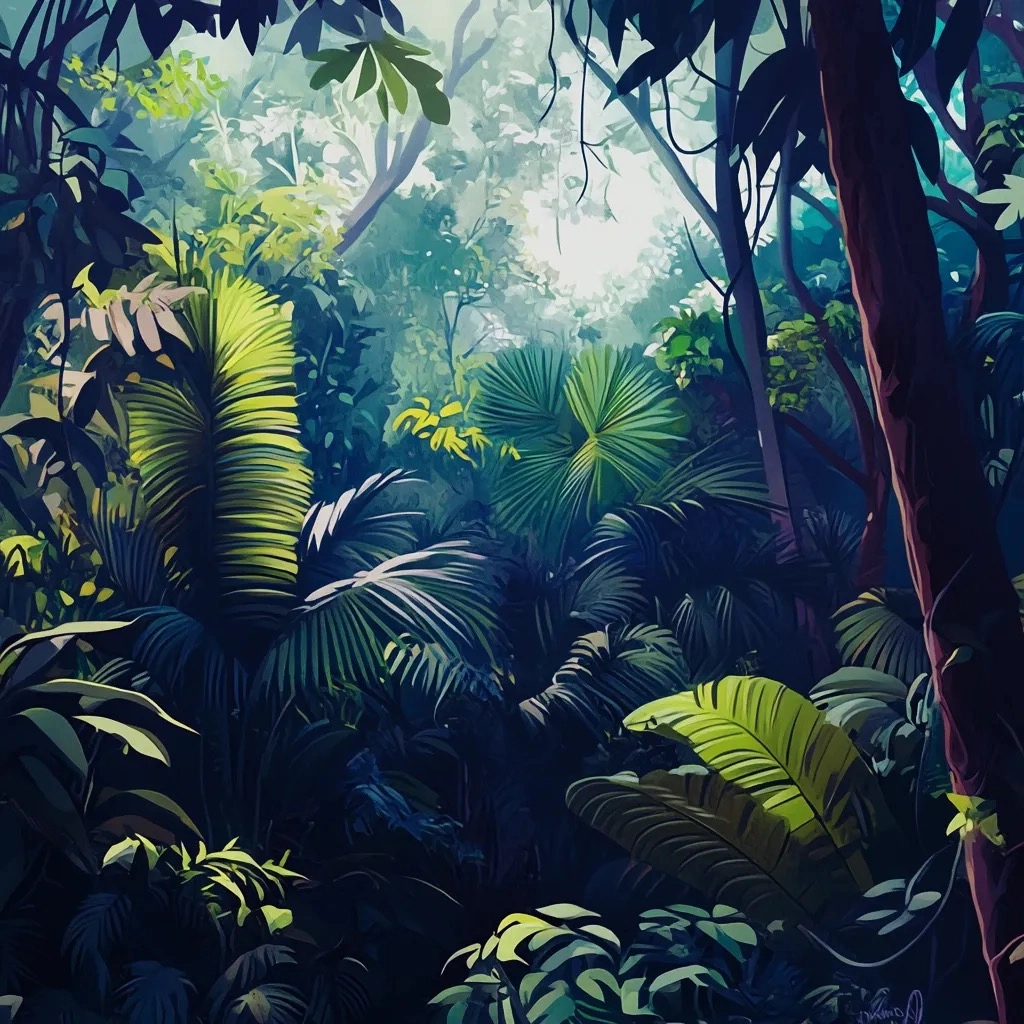 After
AfterOpen up tolerance and swap a dominant color to shift the entire scene mood. A bright daylit forest goes cinematic and moody in one move, no editor needed.
Changing a color in a photo can transform its meaning, match a brand, or multiply a product line. Here is where it matters most.
Photographing every color variant of a product is expensive and time-consuming. Use the Color Changer to produce multiple colorway listings from a single product shot. Swap a shirt from blue to red to green, change a bag from tan to black, or update a furniture finish, all without a second photoshoot.
Adapting existing visual assets to new brand guidelines or seasonal campaigns often means updating colors across dozens of images. Replace a specific color with the exact brand hex . Recolor backgrounds, icons, and illustrations to stay consistent across all channels without touching the original layout or typography.
Color is one of the most powerful tools for creating mood and visual impact. Recolor backgrounds for a different atmosphere, swap accent colors in illustrations, change the color of clothing in fashion photography, or experiment with color palettes before committing to a design direction. No desktop software required.
Free, no signup, and all editing happens in your browser.
Grayscale, monochrome, sepia or a single custom tone.
Cut out the subject automatically and drop in a new background.
Erase a background by color and export a transparent PNG.
Blur a whole photo or just one area, for faces and documents.
Walkthroughs and real-world workflows, written around this tool.
The four things that decide every color change, what to do when your object is the same color as something behind it, and an honest look at what stays hard.
Photographing every color of a product is expensive, and the results never quite match. Start from one photo instead and keep the whole set looking the same.
Guessing at a brand color is how a palette slowly drifts. Enter the exact code instead, and see why a flat logo lands on it exactly and a photo lands close.
Quick answers about how this tool works and how to get the best results.
Upload your image, then click or tap the color in the photo you want to replace. The tool samples that color and highlights the matching areas. Use the sensitivity slider to widen or narrow the selection. This is helpful when the color you're targeting appears in slightly different shades across the image. Then pick your replacement color and apply the change. The result previews before you download.
Yes. After applying your first color change, you can select a different area of the image and replace another color without starting over. This makes it practical for product photography where you want to create variants. For example, you can change both the shirt color and the background color in a single editing session.
The sensitivity slider controls how broadly the tool matches the selected color. At low sensitivity, only the exact shade you clicked is replaced. This protects areas with similar but distinct colors. If the change is spilling into areas you want to preserve, reduce the sensitivity. A small sensitivity value is usually the right starting point for images with subtle color gradients.
You can upload JPG, PNG, WebP and HEIC files. You can export the result as a JPG or PNG depending on whether you need a transparent background. PNG preserves any transparency in the image; JPG produces a smaller file for photos where transparency is not needed.