Loading...
Crop any image to the exact size you need for free. Choose from six aspect ratio presets for social media and print, or drag freely to any custom shape. Free, no signup, all in your browser, works .
Available presets: 1:1 square for Instagram posts, 4:5 portrait for Instagram feed, 16:9 widescreen for YouTube thumbnails and presentations, 9:16 vertical for TikTok and Reels, 3:2 for standard photo prints, and Free mode for unconstrained cropping.
Upload JPG, PNG, WebP or HEIC files. Download the cropped result as a lossless PNG at full original resolution within the crop area.
Crop any image to exact dimensions using aspect ratio presets like 1:1 or 16:9, or draw a freeform selection, all for free.
Three steps to a perfectly cropped image, no sign up required.
Upload any photo from your device. PNG, JPG, WebP and HEIC files up to 25 MB are all supported and load in the browser.
Drag the handles to frame your crop. Pick a ratio preset like 1:1 or 16:9, or zoom in to place the selection with pixel precision.
Hit Download Crop and get your trimmed image in the original format at full resolution, ready to share or drop into any project.
From social media squares to clean product shots, the right crop makes every image work harder.
 Before
 After
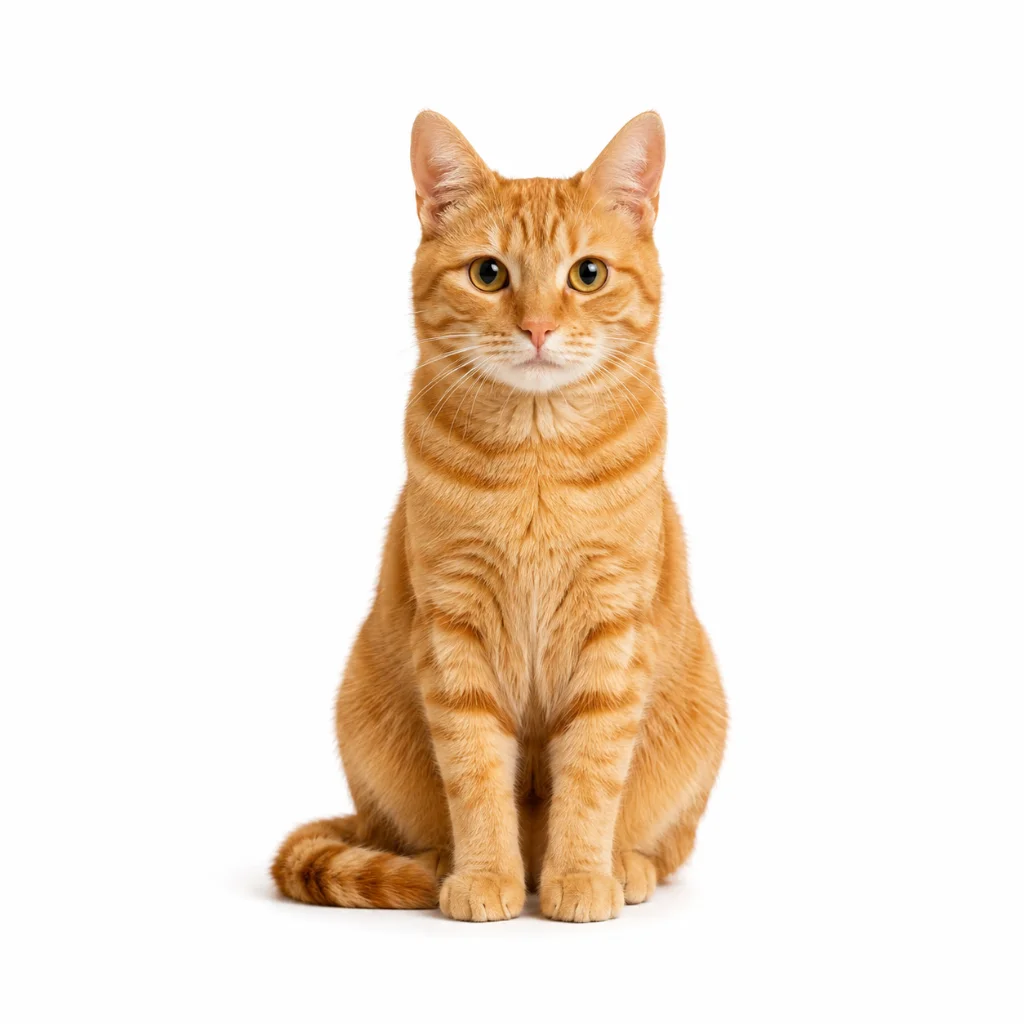
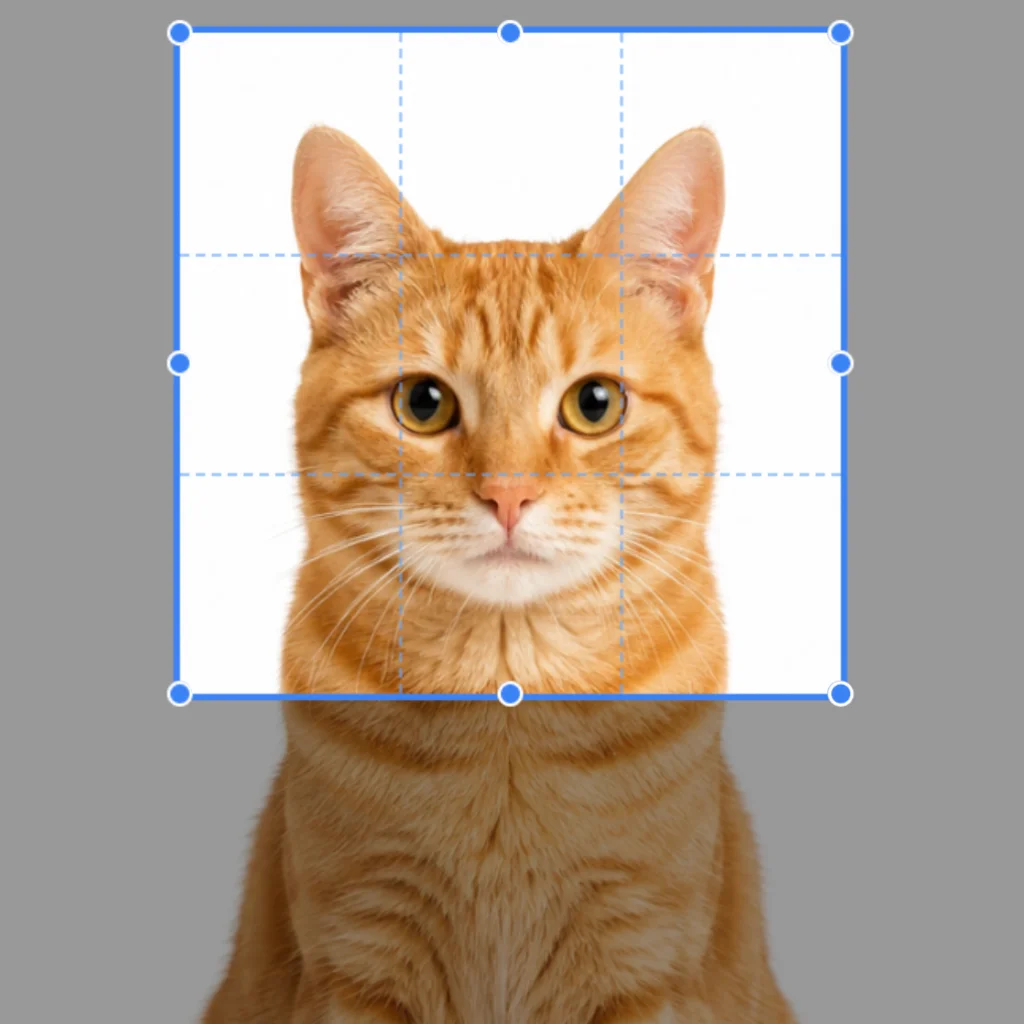
AfterPick the 1:1 preset and drag the box tight around your subject. Perfect for profile pictures, avatars and any platform that demands a square format.
 Before
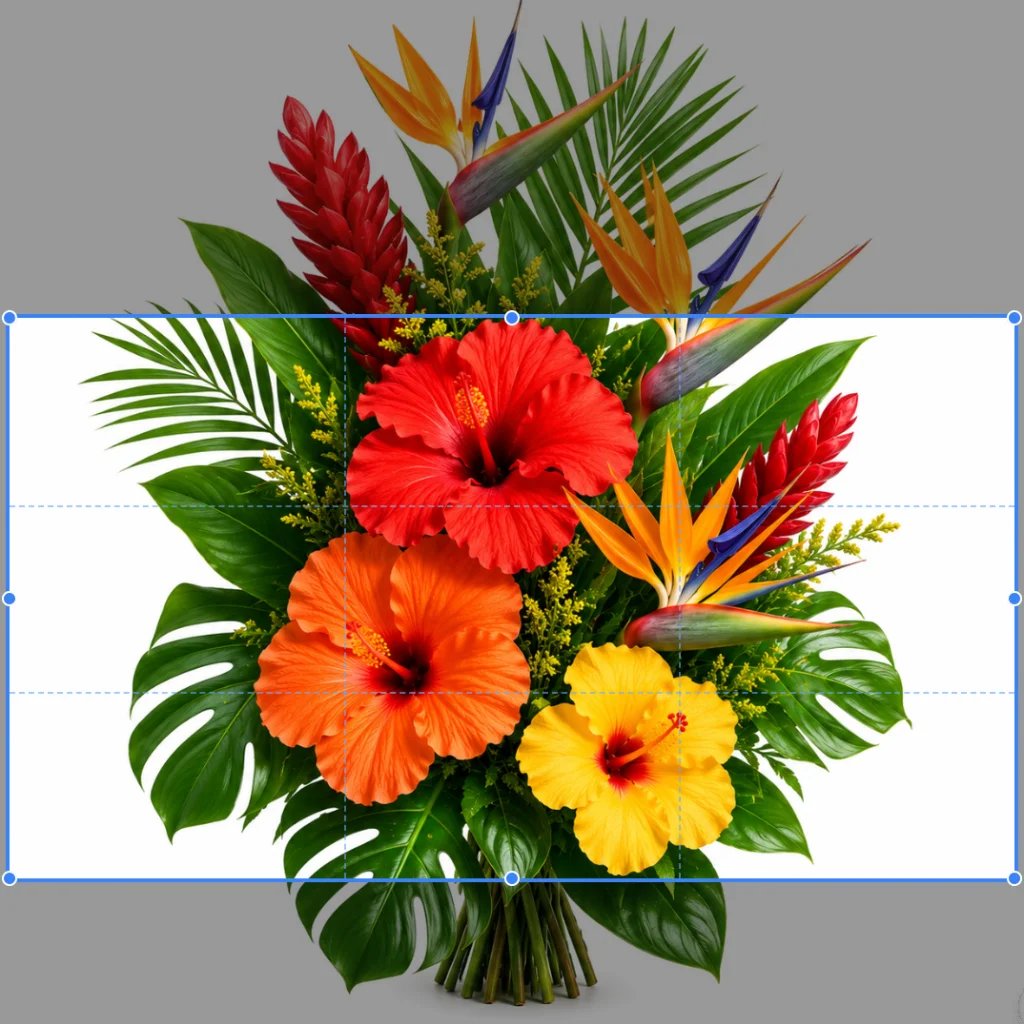 After
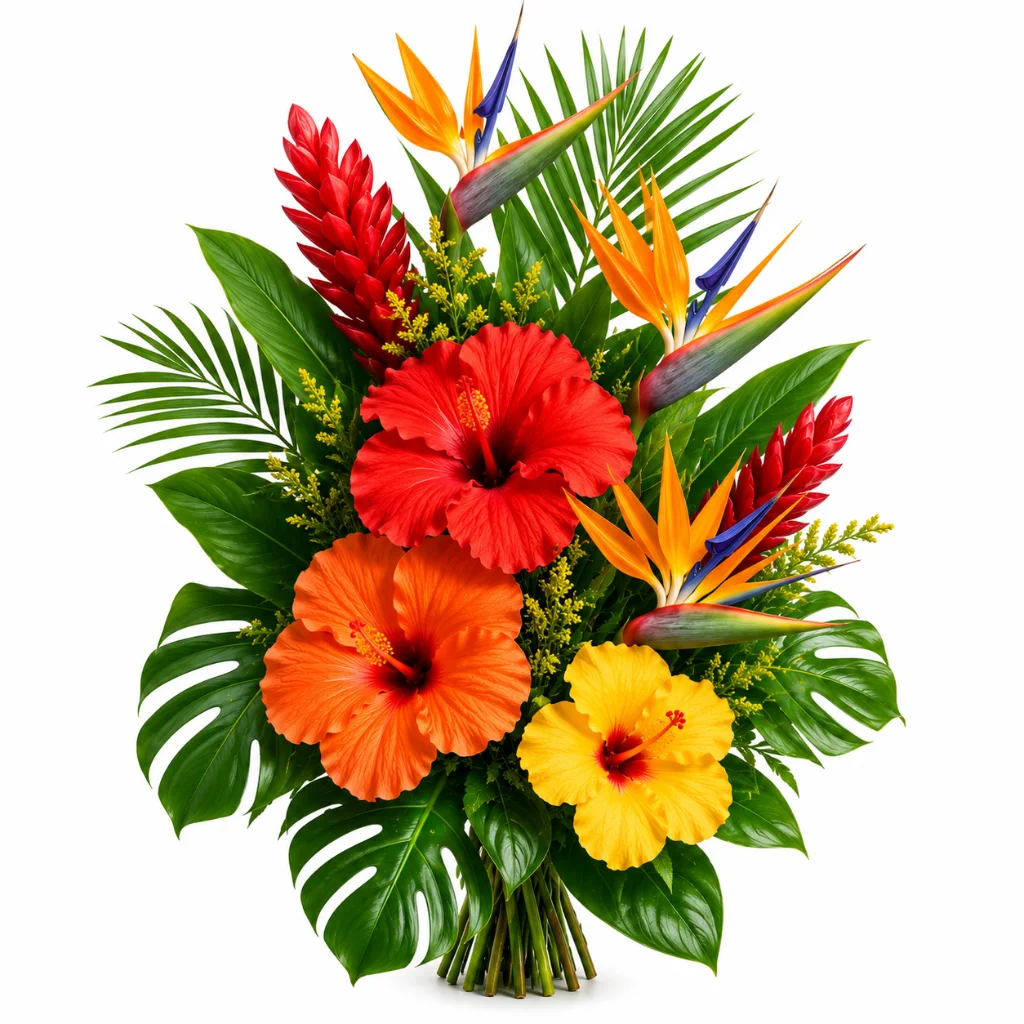
AfterSelect 16:9 and slide the crop box across the widest part of your photo. Ideal for YouTube thumbnails, website banners and video cover images.
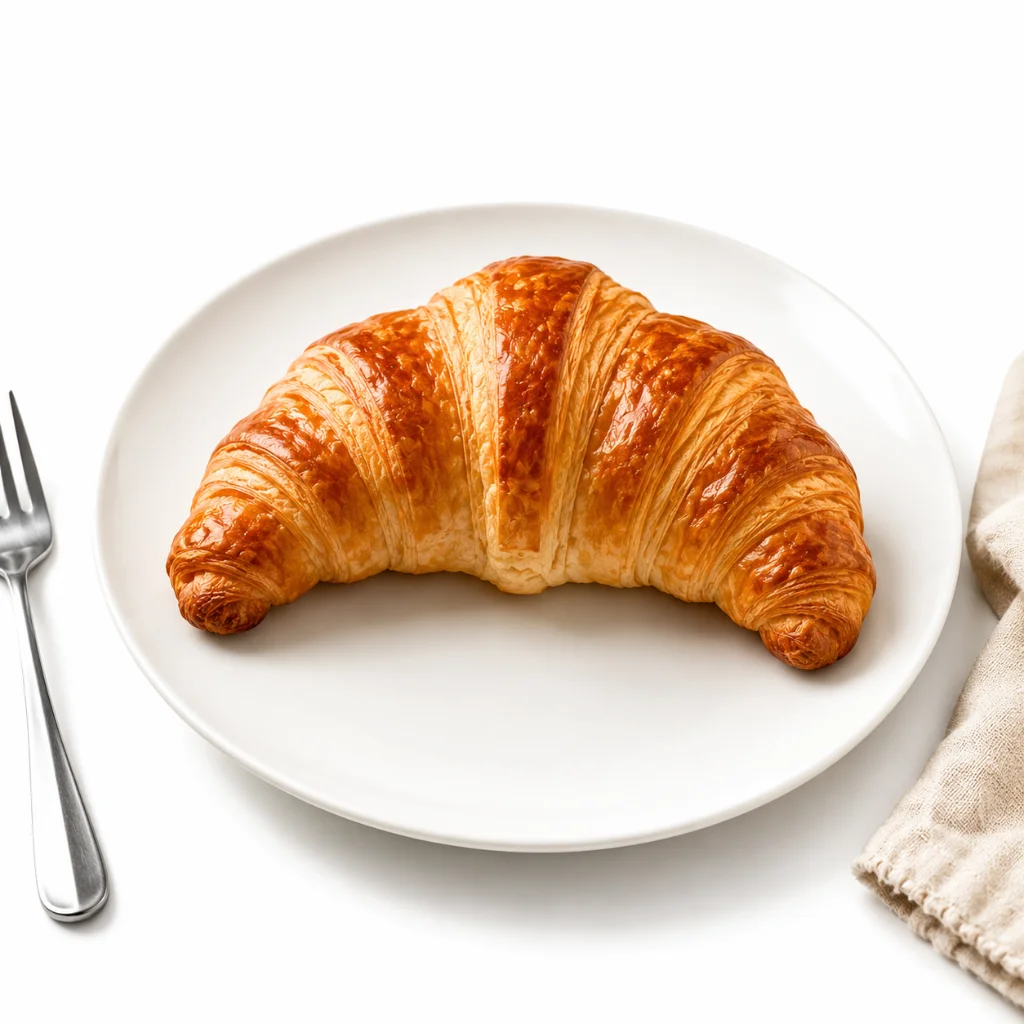 Before
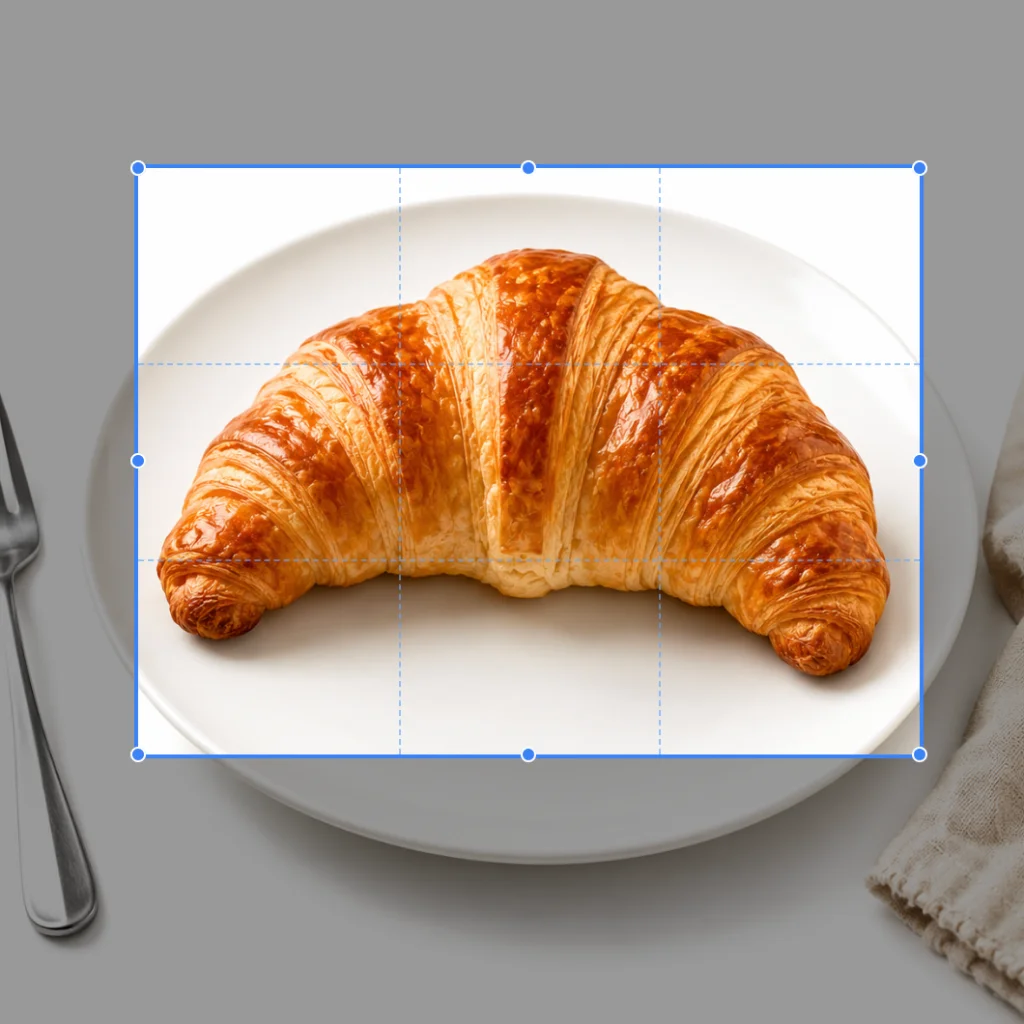 After
AfterSwitch to Free mode and draw a tight box around your subject to cut out distracting objects at the edges. What stays in the frame is entirely up to you.
Getting composition and proportions right is the foundation of any good image. Here is where the cropper makes the biggest difference.
Every social platform displays images at a specific ratio. A square post on Instagram, a 9:16 story on TikTok, a 16:9 thumbnail on YouTube, getting these proportions right prevents unwanted cropping and ensures the subject is centered. The built-in presets snap to the exact ratio each platform expects so you never have to calculate dimensions manually.
Cropping is one of the most fundamental composition tools in photography. Tighten the frame to remove distracting edges, reframe a subject closer to the rule of thirds, remove unwanted objects from corners, or prepare a portrait for a specific print size. Freeform mode gives full control over every edge independently, so no aspect of the composition is constrained.
Websites, CMS platforms, and email templates often require images at fixed dimensions. Crop hero banners, blog post featured images, and product thumbnails to the exact pixel ratios your layout requires. Having consistent image dimensions keeps pages looking clean and prevents layout shifts that hurt both user experience and Core Web Vitals scores.
Free, no signup, and all editing happens in your browser.
Quick answers about how this tool works and how to get the best results.
The cropper includes six presets: Free (no ratio constraint), 1:1 square (Instagram posts), 4:5 portrait (Instagram feed), 16:9 widescreen (YouTube thumbnails, presentations), 9:16 vertical (TikTok, Instagram Reels, Stories), and 3:2 (standard photo print). Select a preset and the crop handle snaps to that ratio automatically as you drag, so you always get the exact proportions you need.
Yes. Select the Free preset and you can drag any corner or edge handle independently. Width and height move without constraint. This is useful when you need to trim specific edges of a photo without committing to a standard ratio, such as removing an unwanted element from one side while keeping the rest of the composition unchanged.
No. Cropping only removes pixels around the outside of your selection. It does not recompress or alter the pixels inside the crop area. The downloaded result is at full original resolution within the crop boundary. The only exception is if the crop area is very small relative to the source image, in which case the resulting image simply has fewer total pixels.
You can upload JPG, PNG, WebP and HEIC files. The cropped result is downloaded in the same format as your original. JPG stays JPG, PNG stays PNG, and WebP stays WebP. HEIC files are converted to JPG before cropping and download as JPG.