TL;DR. eBay has the most established product-photo culture of any platform in this series, and buyer expectations track that maturity: clean cutouts on white backgrounds win clicks and reduce returns. This guide covers the photo formula that wins the gallery slot, color variants with the Color Changer, and a repeatable photo routine for sellers running real volume.
Why photos matter more on eBay
eBay's scale and the maturity of its buyer culture set it apart from every other platform covered in the general platform overview. Buyers on eBay are usually shopping with intent: they have a specific item in mind, they are comparing across several listings, and they are deciding fast. The gallery photo (the small image that appears in search results) is the single most important asset in your listing, doing more work than the title, the price, or the description.
eBay buyers have also been trained over two decades of product-photography catalogs to associate “cutout on white” with serious sellers. A listing photographed on a kitchen counter does not just look casual, it actively reads as less trustworthy. The visual norm is set, and going against it costs you clicks.
The flip side is also true: small improvements in your gallery photo translate directly to more clicks, more sales, and eventually better placement in search. Photo quality is one of the few inputs that compound.
eBay's photo guidelines you should know
eBay publishes specific seller photo guidelines that change over time. The high-level rules have been stable for years:
- No watermarks, logos or added text in the gallery image. The first image must be a clean photo of the item only. Watermarks reduce trust and are often flagged.
- No borders, frames or photo collages. Listing photos must be the item itself, not a designed composite.
- Resolution minimums. Below a certain pixel count, photos look soft and may be rejected. Modern phones at full resolution comfortably exceed the requirement.
- Accurate representation. The photo must actually represent the item being sold. Stock photos, manufacturer images and library shots are generally not allowed in place of an actual photo of your specific item.
- Category-specific rules. Some categories (jewelry, collectibles, electronics) have stricter guidelines on resolution and view angles.
The exact specifications can be checked in eBay's seller help center, which publishes the current rules. A cutout on a clean background satisfies all the gallery-image guidelines out of the box, which is part of why this style has become standard.
The eBay-winning photo formula
Most eBay sellers settle on the same three-image formula after running their first few hundred listings. Each image does a specific job.
The gallery photo (your search-result image)
The gallery photo is everything. It is the only image that appears next to your listing in search results, watch-list summaries, and email notifications. Most eBay browsing happens on a phone, where the gallery photo is the largest element on the screen.
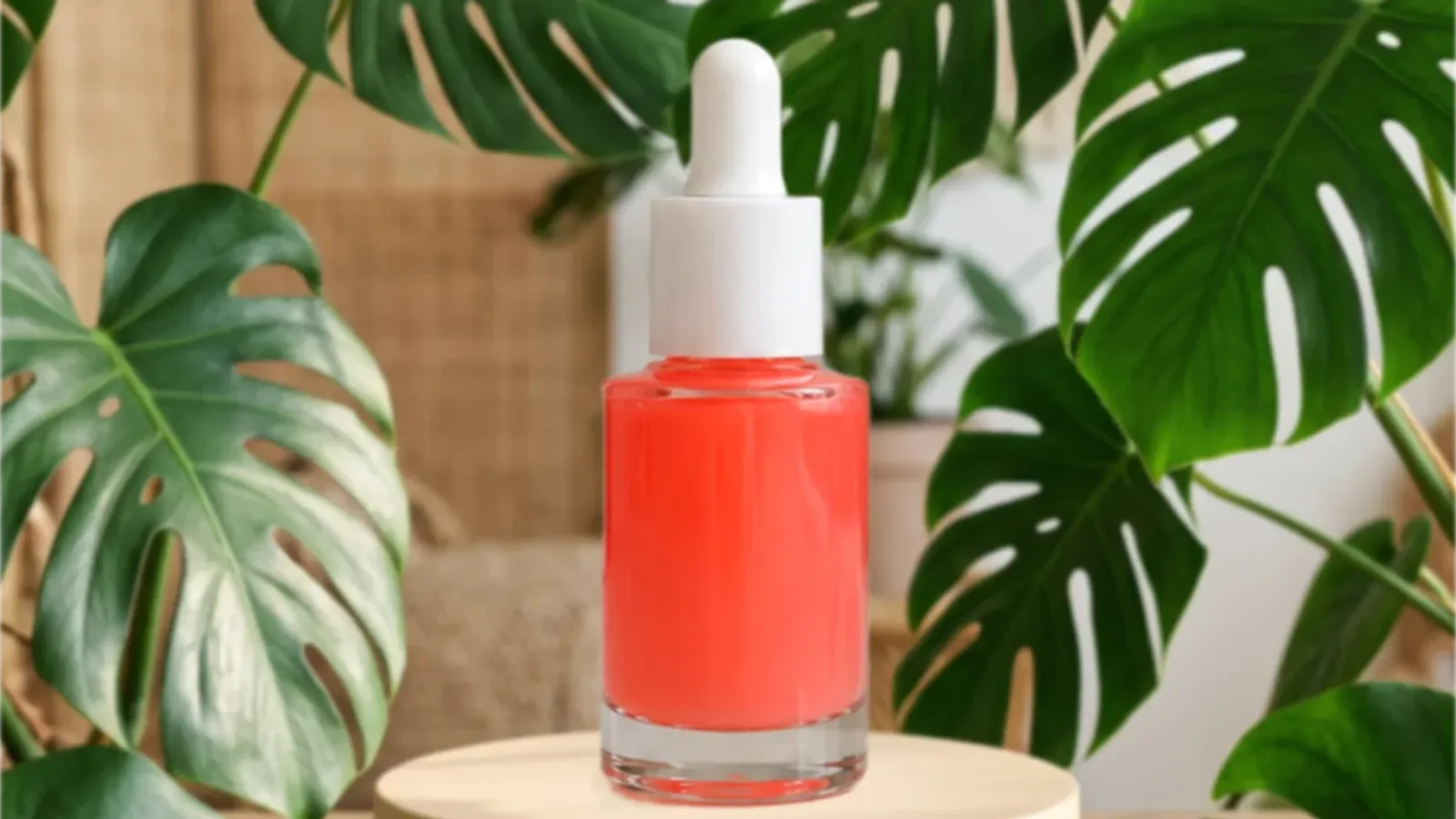
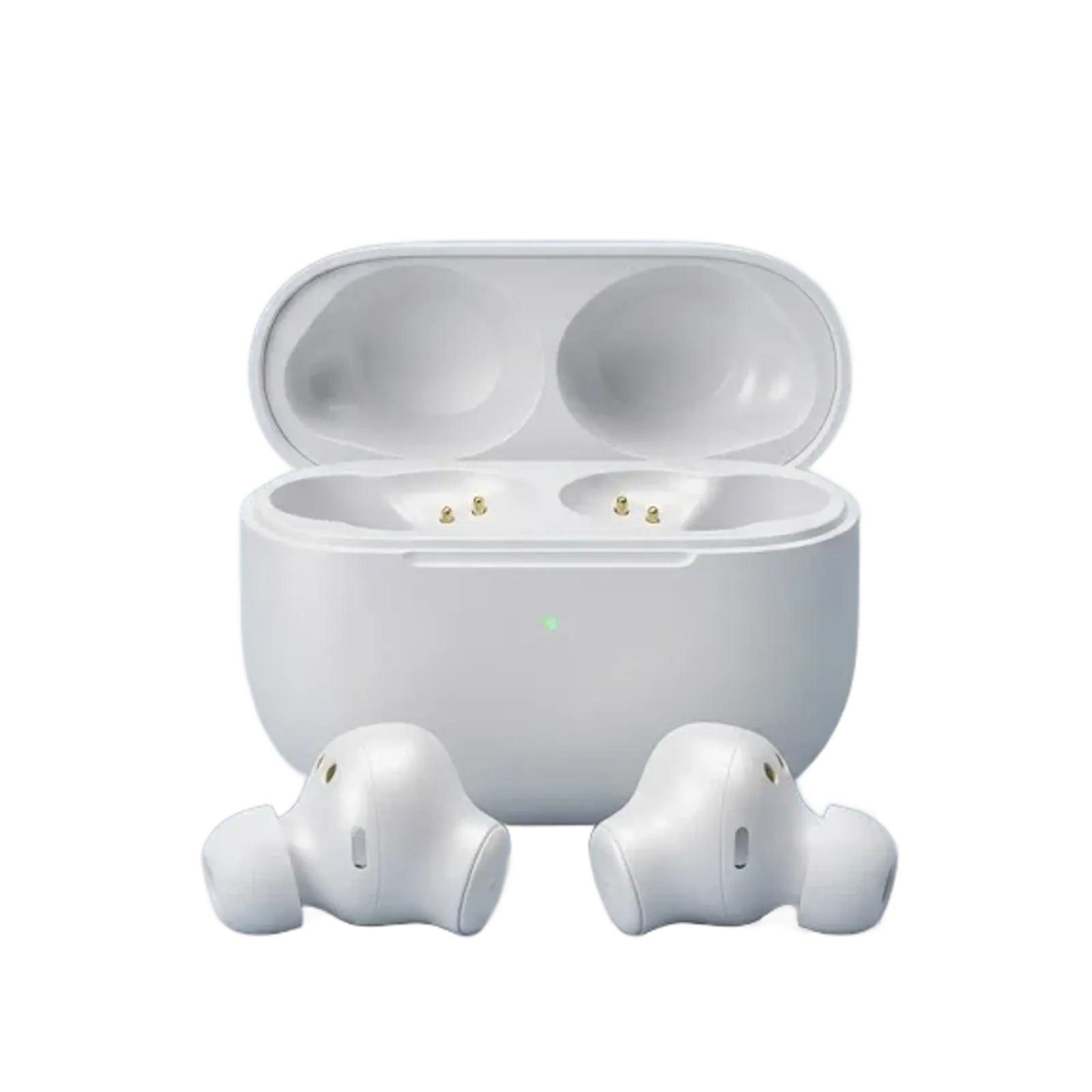
The winning gallery photo: item cleanly isolated, centered, filling 70% to 90% of the frame, on a pure white or off-white background. No text overlay, no watermark, no background scene, no other items. The simplest treatment is also the most effective.
This is exactly the output you get by photographing the item on whatever surface is available, running it through the AI Background Remover for the cutout, and dropping it onto a white background. The whole sequence takes seconds per item.
Context photos that reduce returns
Once the gallery photo has won the click, context photos do the trust work. A buyer who clicked because of your clean cutout now wants to know what the item actually looks like in the wild. Worn on a person for clothing. In a room for decor. Next to a known object for scale. Powered on for electronics.
These photos do not need AI editing. They are deliberately casual because their job is to feel real. A clean cutout followed by two context photos signals “professional but honest”, which is the exact buyer expectation on eBay.
The condition photo nobody wants to take
Every listing should include at least one close-up of any condition issue: wear, scratches, marks, missing pieces. The instinct is to hide flaws, and that instinct is wrong. Buyers who discover an issue after delivery leave negative feedback and file returns. Buyers who saw the issue in the photos and bought anyway are happy customers who keep the item.
The condition photo paradoxically increases conversion on used and refurbished items, because it eliminates buyer hesitation. They know what they are getting, they decided to buy anyway, the transaction completes without disputes.
Variant photos with the Color Changer
eBay's multi-variation listings let a single listing carry several color options, each with its own photo. The traditional problem: photographing every colorway means owning, steaming and shooting every colorway.
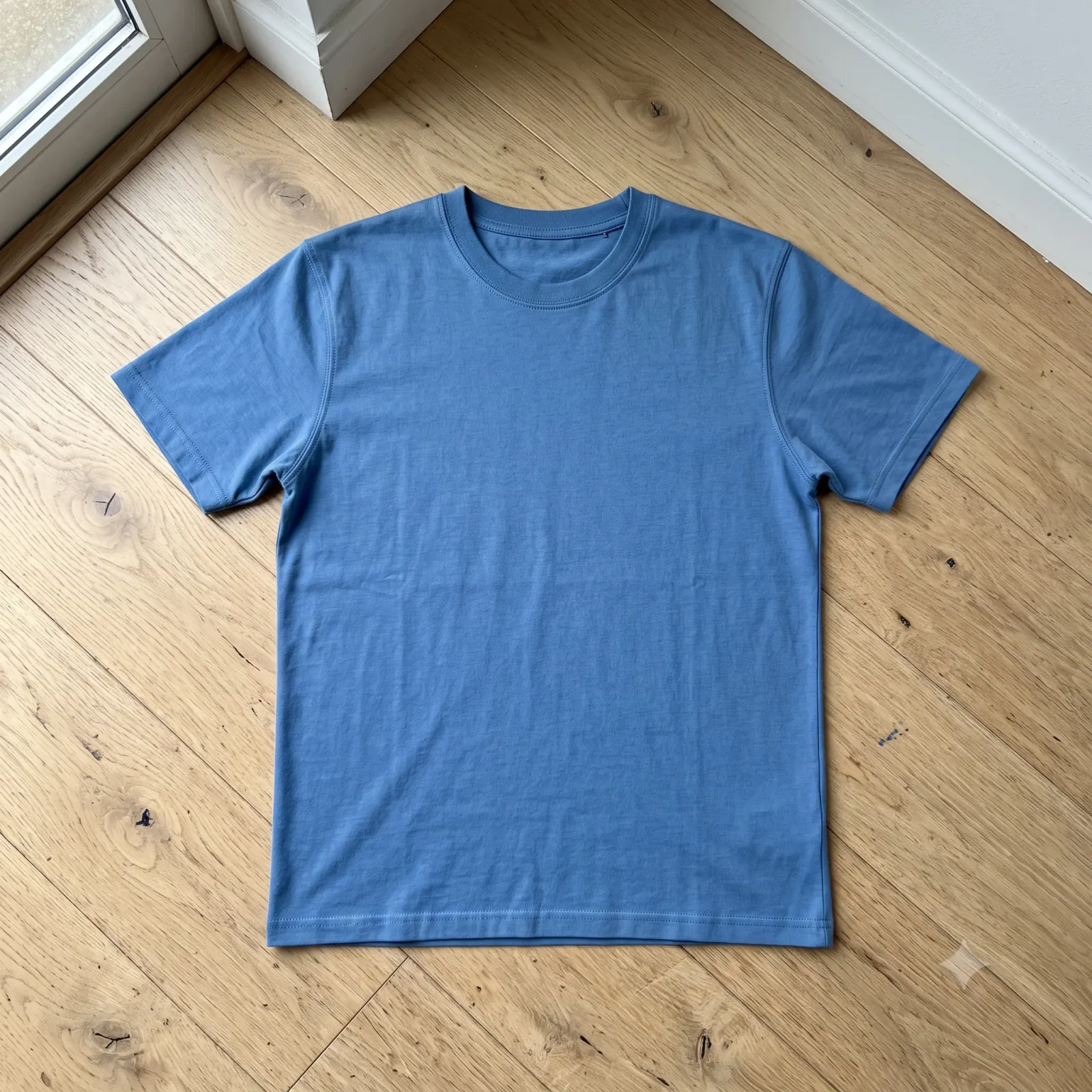
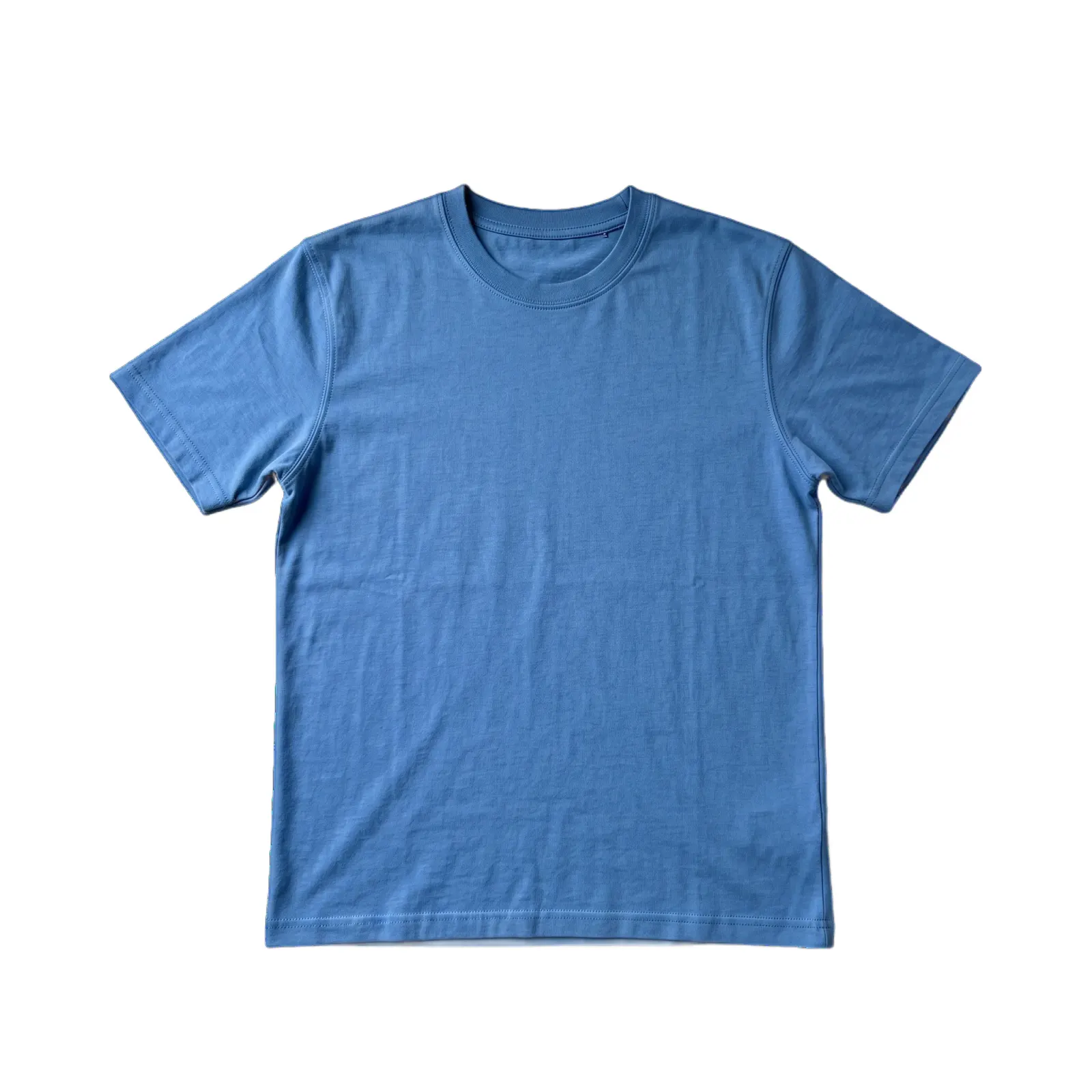
For sellers of new items there is a faster path. Photograph one colorway, cut it out, place it on your gallery background, then use the PictTools Color Changer to produce the other color options from the same source photo. Every variant keeps identical framing, lighting and background, which makes the variant picker look like one coherent product line instead of five separate photo sessions.
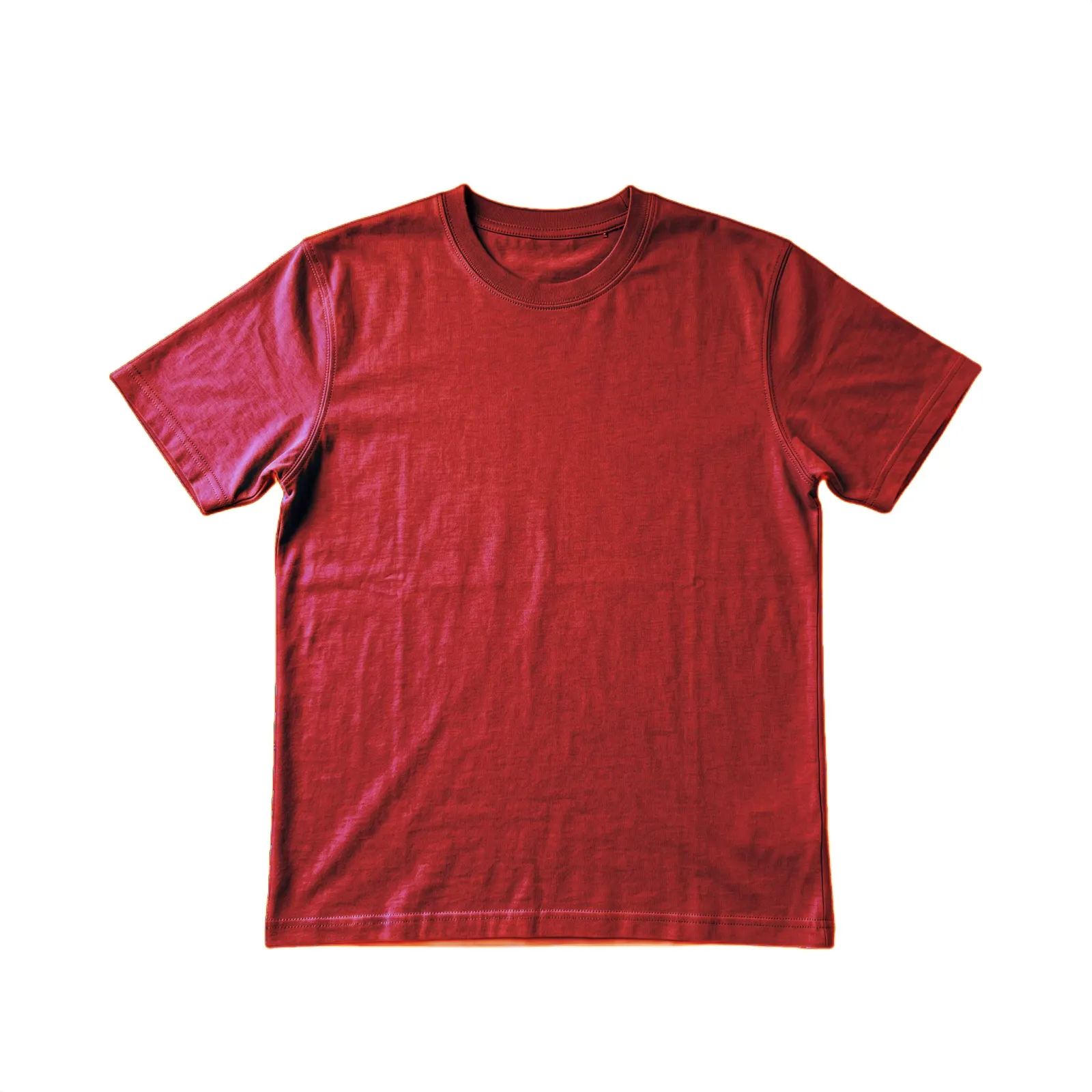
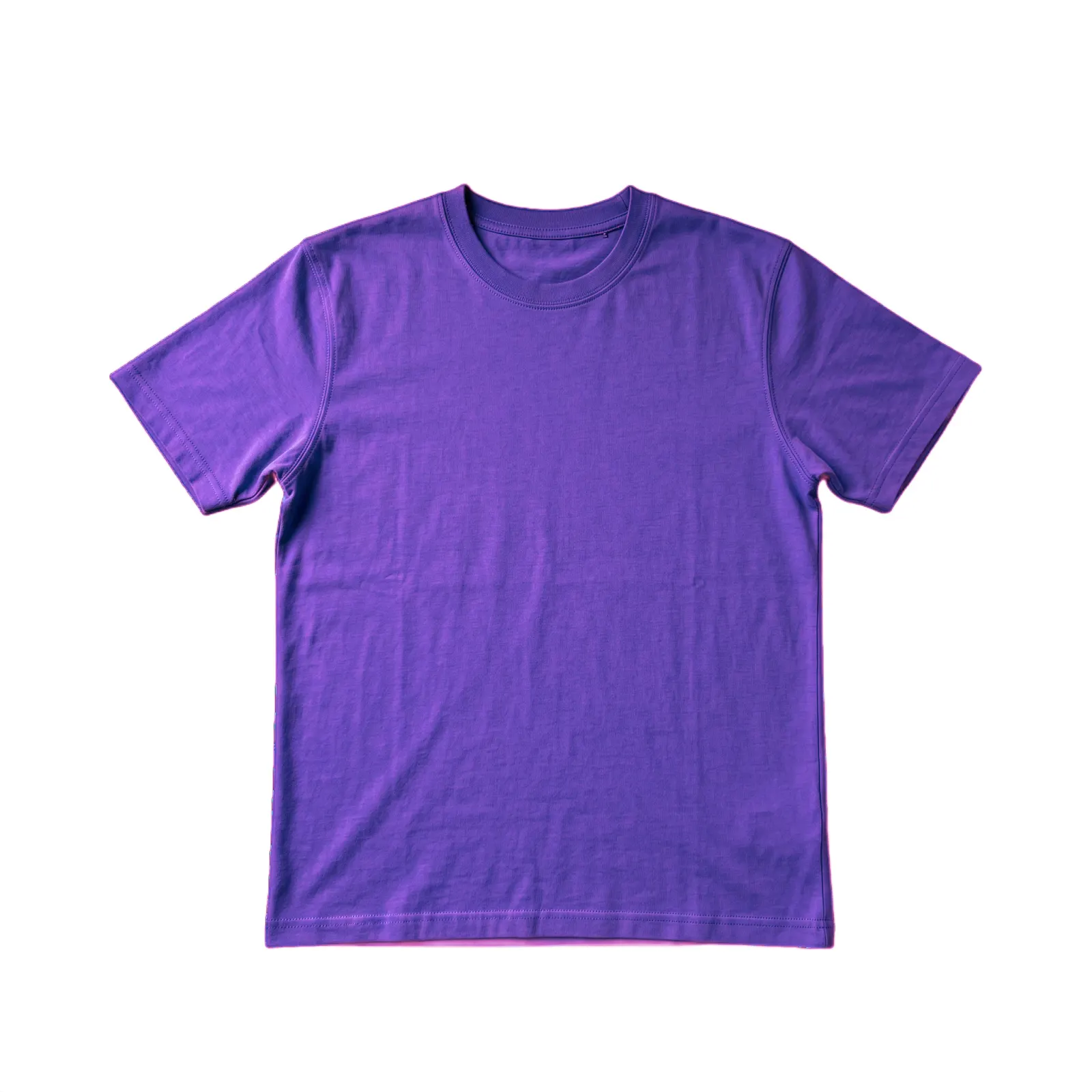
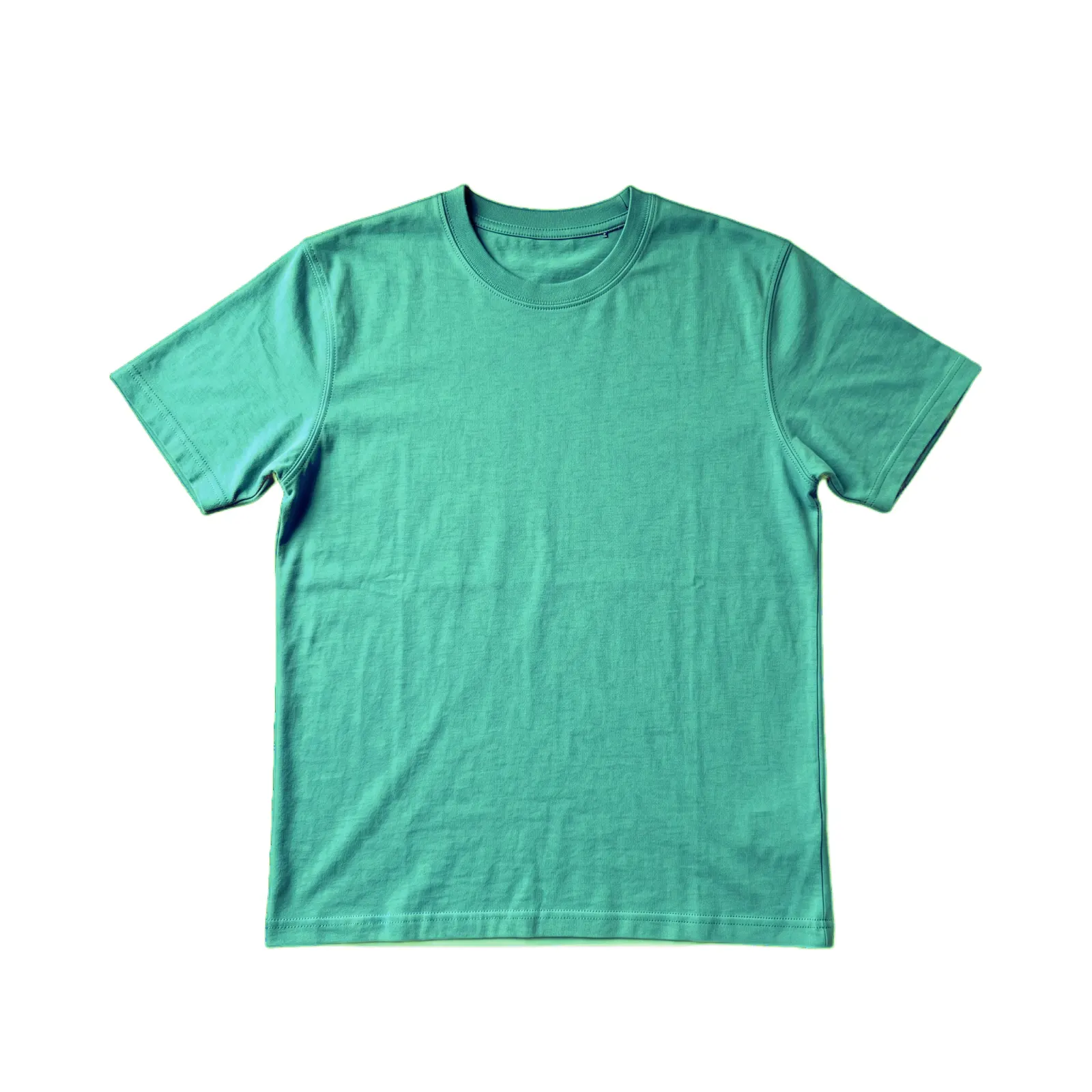
One rule governs this workflow: the generated color must accurately match the real variant you ship. Buyers compare the delivered item against the photo of the option they selected, and a mismatch means returns and negative feedback. Use the recolor workflow to save shooting time on variants you actually stock, never to advertise colors you have not verified against the real product.
A repeatable routine for eBay sellers
Active eBay sellers usually settle on a repeatable photo routine within the first few hundred listings. To set expectations: the tool processes one image at a time, and each pass takes seconds. The speed comes from the discipline of the routine, not from a bulk button. The version that works for most:
1. Shoot everything in one session. Consistent lighting and surface across the session saves time downstream. Window light during the day is the cheapest professional-looking light source.
2. Process cutouts in sequence. Drop each item into the AI Background Remover, refine the edges if needed (most product shots take a few passes of the brush), download as a transparent PNG. Move to the next.
3. Composite on a single white background for the gallery photos. One white background for the entire shop creates the catalog look that eBay buyers respond to.
4. Resize for eBay's current recommended size. Use the PictTools Image Resizer to match whatever pixel size eBay currently recommends. For non-gallery photos, the recommended size is usually sufficient.
5. Compress before upload. Phone photos at full resolution can run 5 to 10 MB each. Compressed cleanly with the PictTools Image Compressor they drop to 200 to 400 KB without visible quality loss, which uploads much faster especially on mobile data.
Common eBay photo mistakes
eBay listings fail in predictable ways. The following are the patterns that show up over and over in low-CTR listings.
Item not centered or filling the frame. A tiny item floating in the corner of a large white space wastes the gallery photo's impact. Fill the frame with the item.
Gallery photo includes packaging. If you are selling the item, photograph the item. The packaging belongs in a context photo, not the gallery. Buyers who click expect the item itself.
Background color shifts. If you have ten listings with ten slightly different shades of white as the background, your shop looks scattered. Pick one exact white value and reuse it across the whole set.
Watermarks or text on the gallery photo. eBay specifically prohibits these in the gallery slot. Even when they slip through moderation, buyers find them off-putting and the algorithm tends to surface listings without them.
Mismatched photo styles within a single listing. Clean cutout cover followed by three blurry phone shots breaks the polish. Either treat the supporting photos as deliberately casual context shots or process them the same way as the cover.
Skipping the condition photo. For used items, the temptation to hide wear leads to disputes and returns that damage your seller metrics far more than the lost sale you were protecting against.
Frequently asked questions
For the underlying step-by-step of how the AI Background Remover works on any photo, see our companion guide on removing the background from product photos. For the broader strategy across other platforms, see the platform-by-platform guide.